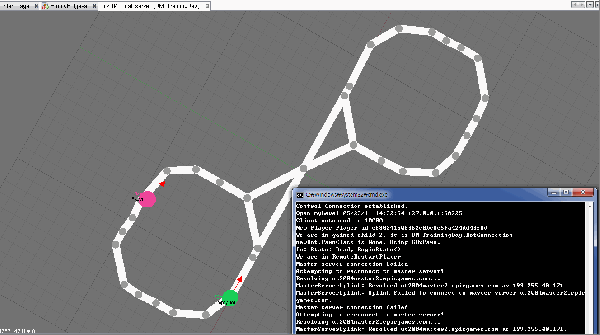
- Preparation
- Operating Systems:
- Programming Languages:
- Important Documents:
- How to Build Your Own Controller
- Step 1) Preparation
- You need following software to make an unreal bot
- JAVA JDK 6 (32 bit)
- Netbeans 6.9.1
- Maven 3.0.2
- Unreal Tournament 2004(UT2004)
- UnrealEngine2RuntimeDemo(UE2)
- Pogamut 3.2.0
- You can download Netbeans, Maven, Pogamut, UnrealEngine2RuntimeDemo from http://diana.ms.mff.cuni.cz/main/tiki-index.php?page=Download
- You need to buy Unreal Tournament 2004
- Step 2)
- Install Unreal Tournament 2004 (We recommend to run the game once before the next steps)
- Install UnrealEngine2RuntimeDemo
- Install JDK
- Install Maven
- Unzip the package in your drive (for example, d:\maven)
- Add d:\maven\bin to $PATH
- Control Panel → System → Advanced System Configuration → Environmental Variables → System Variable → Path → Edit → add ;D:\maven\bin to the end of the current value
- Add $MAVEN_OPTS to Environmental Variables and set the values as -Xmx1g -Xms512m
- Control Panel → System → Advanced System Configuration → Environmental Variables → User Variable → New → Variable Name: Maven_OPTS → Values: -Xmx1g -Xms512m
- Install Netbeans (Use help→check for update to get the latest release)
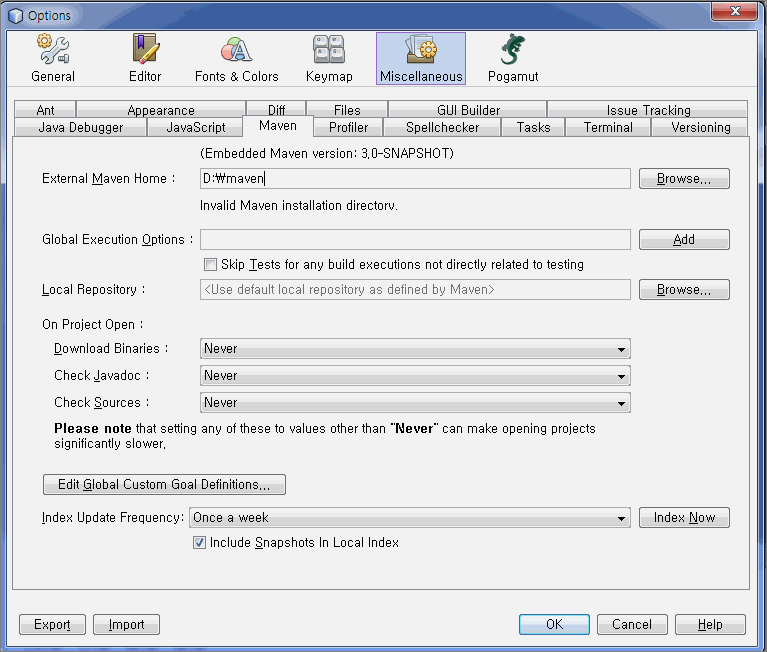
- Maven configuration (Tool→ option→ Miscellaneous→ Maven)
- Set External Maven Home
- Install Pogamut
- Step 3) Create an Empty Bot
- File → New project
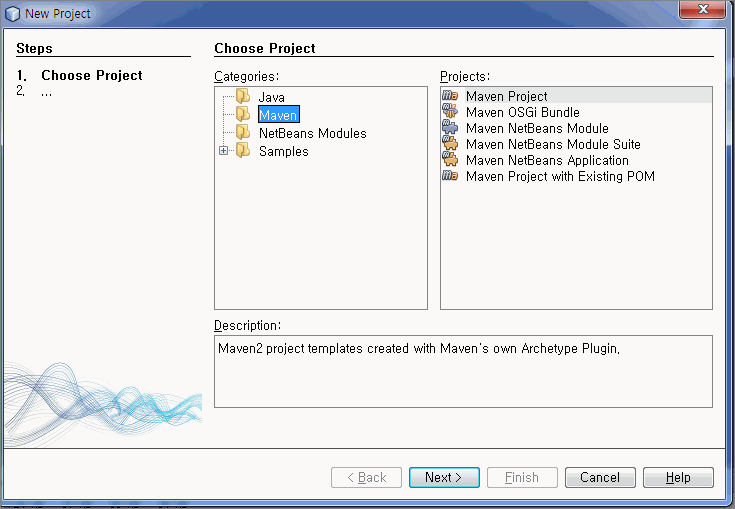
- Choose Maven Project
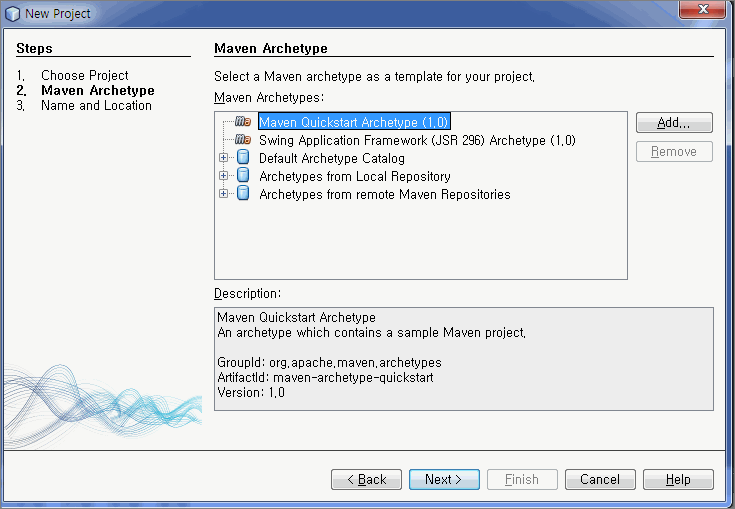
- Choose Add
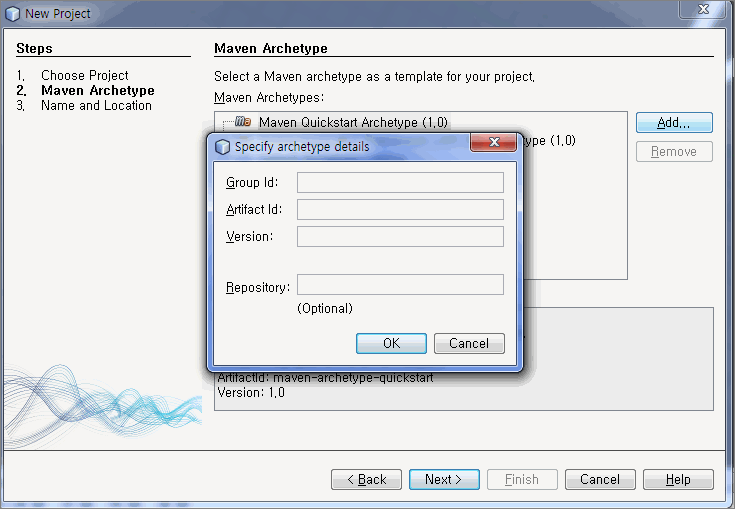
- Enter the following values
- Group ID: cz.cuni.amis.pogamut.ut2004.examples
- Artifact ID: 00-empty-bot-archetype
- Version: 3.2.4-SNAPSHOT
- You can find information about other bots from here
- Choose Custome Archtype and “Next”
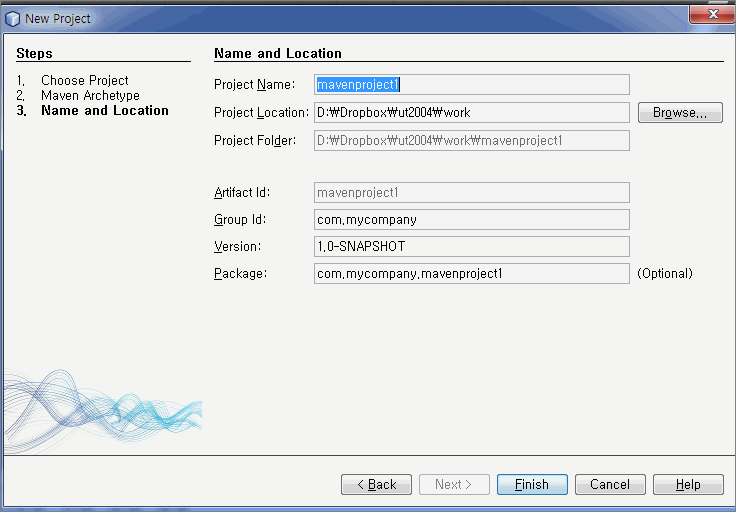
- Set project name and path, and Finish
- Step 4) Server Configuration
- You can find service tab near project tab. Service Tab → UT 2004 servers
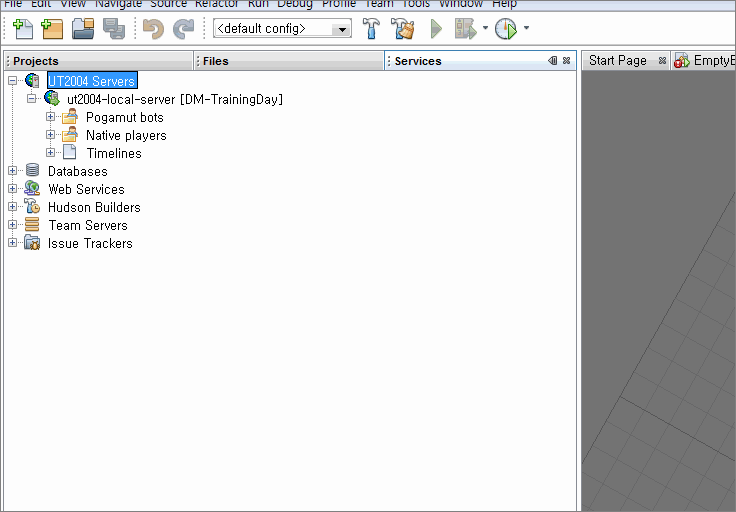
- Right Click the UT2004 servers and Add Server
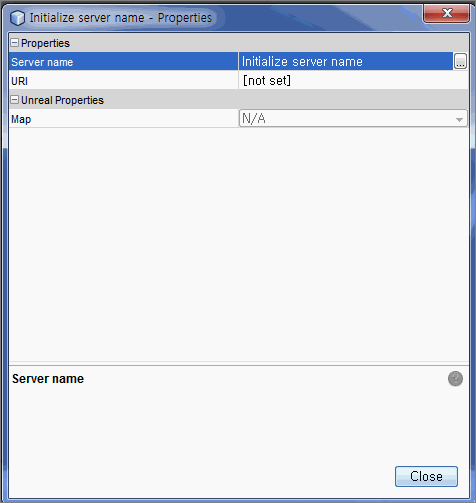
- Server name is ut2004-local-server (You can change the name), URI is localhost:3001 or 127.0.0.1:3001
- To run the server, execute startGamebotsDMServer.bat in UT2004\system folder
- C:\Program Files\Steam\steamapps\common\unreal tournament 2004\System\startGamebotsDMServer.bat