This is an old revision of the document!
Table of Contents
- Preparation
- Operating Systems:
- Programming Languages: JAVA
- Important Documents:
- How to Build Your Own Controller (Eclipse - 32bits windows7 / Helios sr2 , JAVA)
- Download eclipse from http://eclipse.org
- Please choose eclipse marketplace and find subclipse for SVN
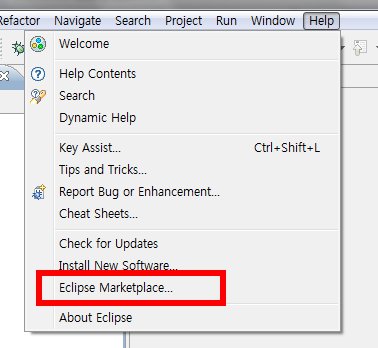
- [File] → [New] → [Other] → [SVN]
- Choose 'Checkout projects from SVN' and Press “Next”
- Enter [http://marioai.googlecode.com/svn/trunk] as a repository
- Once again, press [http://marioai.googlecode.com/trunk] and “Next”
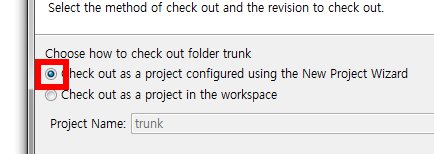
- Choose 'Check out as a project configured using the New Project Wizard' and Finish
- [Java] → [Java Project] and “Next”
- Project Name as 'MarioAI'
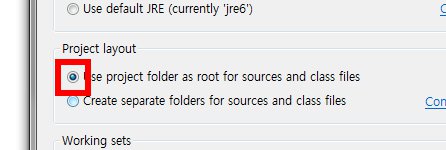
- Choose 'Use project folder as root for sources and class files' and “Next”
- In the next window, press 'Configure inclusion and exclusion filters' in 'Details'
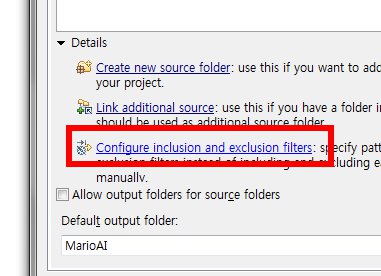
- In 'Inclusion' Window, press 'Add' and enter [“.lvl” “.dat”] and finish
- Finish


3. 설정 및 빌드
처음 프로젝트를 생성한 뒤에 하나를 설정해 줘야 한다.
프로젝트 트리구조를 확장시켜 src폴터를 선택하여 [마우스 오른쪽 버튼] → [Build Path] → [Use as source folder] → [OK]
그리서 나서 [Project] → [Build All]을 누른다.
(처음부터 [Project] → [Build Automatically]가 설정되어 있다면 다시 빌드할 필요는 없다.)
4. 실행
위의 과정을 착실히 수행해 왔다면, [Run] → [Run Configurations]눌러 창을 연 다음
[Java Application] → [New Launch Configuration]을 선택한 상태에서 'Main'탭의 'Main class'를 찾아 다음과 같이 입력한다
'ch.idsia.scenarios.Main'

그 뒤 'Run'을 누르게 되면,

축하한다. 콧수염 배관공이 하늘에서 떨어지는 것을 볼 수 있을 것이다.
(현재의 모드는 매뉴얼 모드로 A키로 불꽃, S키로 점프를 할 수 있으며, 십자키로 콧수염 아저씨를 움직일 수 있다.)
5. AI 실행
AI를 적용하여 실행시키기 위해서는 뒤에 옵션을 추가로 정해주면 된다
다시 [Run] → [Run Configurations]를 눌러 창을 연 다음
'Arguments' 탭을 열어 'Program arguments'에 다음을 추가해 보자
'-ag ch.idsia.agents.controllers.ForwardJumpingAgent'

그 뒤 'Run'을 누르게 되면, 자기 혼자서 달려나가는 콧수염 배관공 아저씨를 볼 수 있을 것이다. (다른 컨트롤러를 사용해보고 싶다면 프로젝트 트리의 src→ch.idsia.agents.controllers 하위에 있는 컨트롤러로 바꿔보자.)


